
第二章:Nginx 安装
1. 安装 pcre
这里把 pcre 安装到了 /usr/local 目录下面了
- 执行命令进行远程下载
shell
wget http://downloads.sourceforge.net/project/pcre/pcre/8.37/pcre-8.37.tar.gz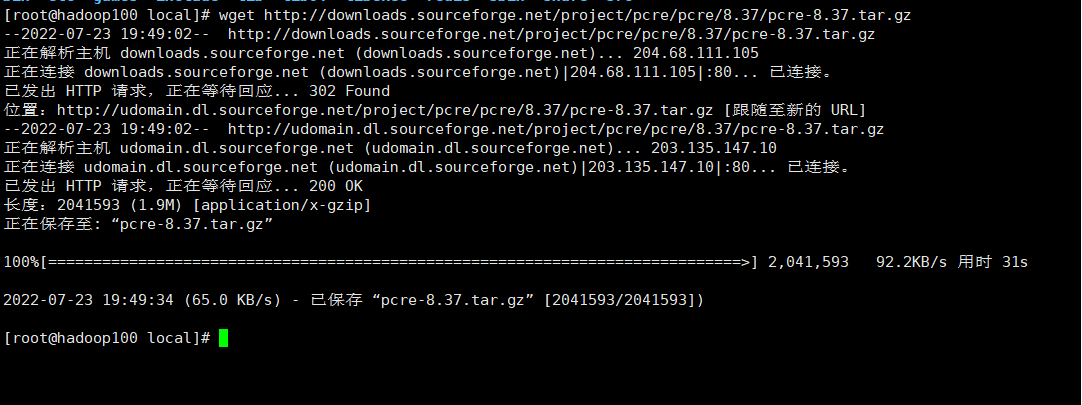
- 解压至当前目录
shell
tar -xvf pcre-8.37.tar.gz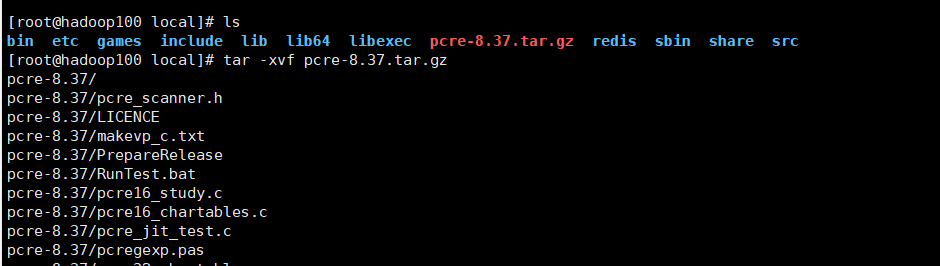

- 进入 pcre-8.37 目录下,执行 ./configure 命令
shell
cd pcre-8.37shell
./configure
有一个错误,说我们缺少 C++ 编译环境,执行以下命令,进行安装:
shell
yum -y install gcc-c++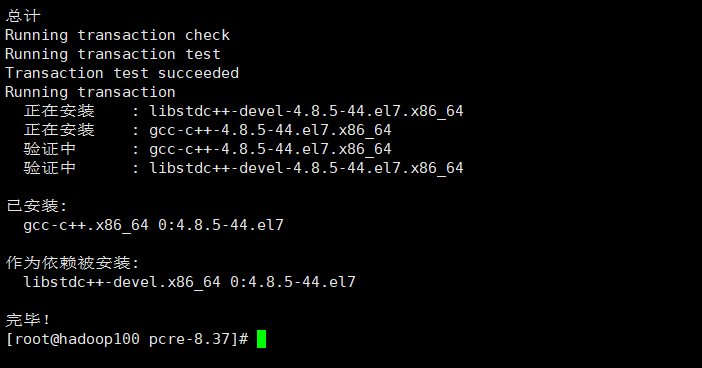
gcc 安装完成后,要再重新执行一次 ./configure 命令
- 在 pcre-8.37 目录下 执行以下命令进行编译和安装
shell
make && make install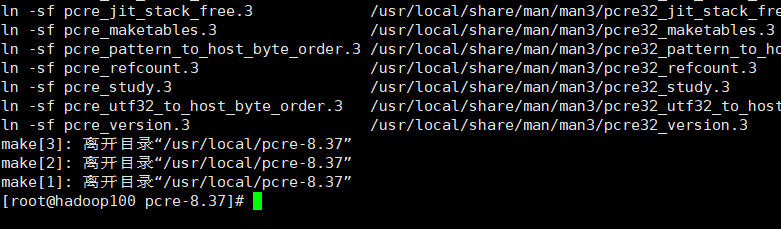
输入以下命令可以查看版本号:
shell
pcre-config --version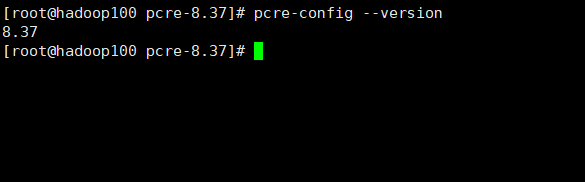
至此 pcre 安装完成
2. 安装 openssl 和 zlib
shell
yum -y install make zlib zlib-devel gcc-c++ libtool openssl openssl-devel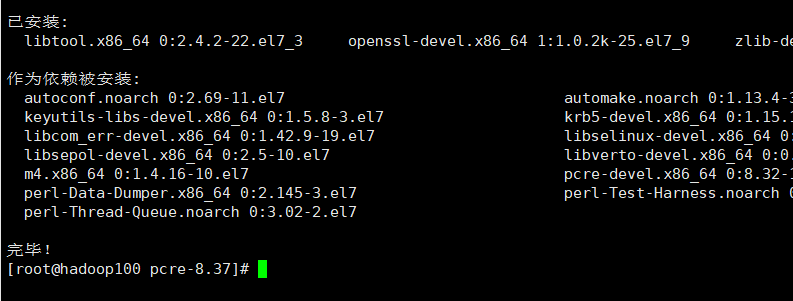
3. 安装 Nginx
这里把 Ngnix 安装到了 /usr/local 目录下面了
- 通过远程工具(Xftp)将 Ngnix 安装包放到这个目录下
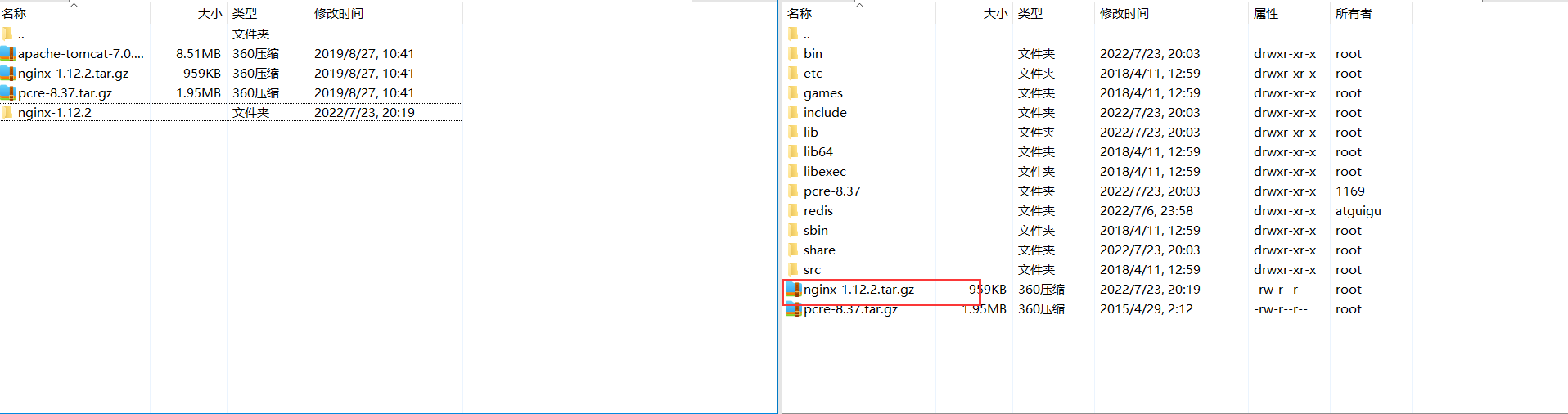
- 进入 nginx-1.12.2 目录下,执行 ./configure 命令
shell
cd cd nginx-1.12.2shell
./configure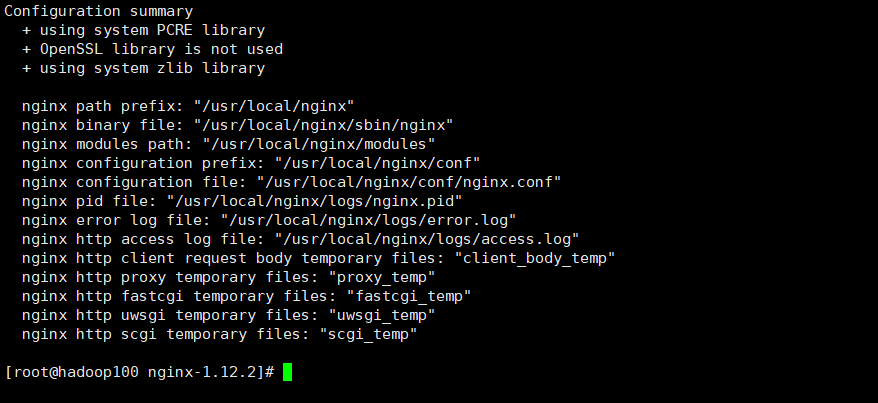
- 在 nginx-1.12.2 目录下 执行以下命令进行编译和安装
shell
make && make install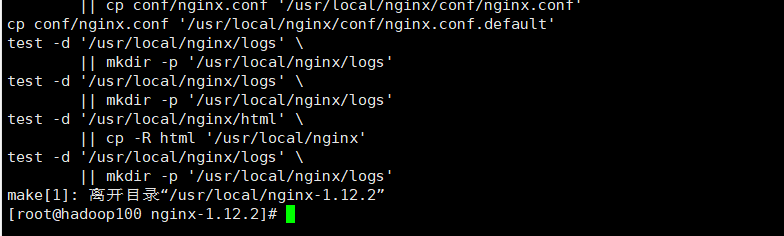
在 /usr/local 目录下可以看到一个 ngnix 目录
shell
ls
至此 Ngnix 安装完成
4. 启动 Nginx
- 进入 nginx 目录下的 sbin 目录
shell
cd nginx/sbin/- 使用 ls 命令可以看到 有一个 nginx 文件
shell
ls
- 使用 ./nginx 命令来启动nginx
shell
./nginx
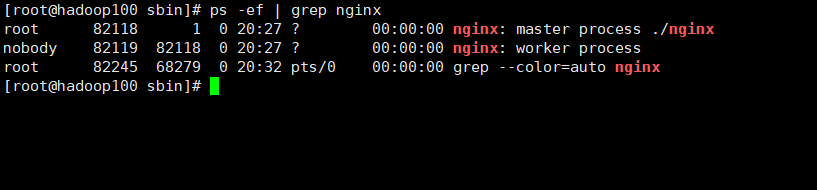
5. 查看 nginx 默认访问端口号
进入 nginx/conf/ 目录下,查看 nginx.conf 配置文件就能看到默认访问端口号
shell
less nginx.conf # 查看命令6. 查看 防火墙 开放的端口号
shell
firewall-cmd --list-all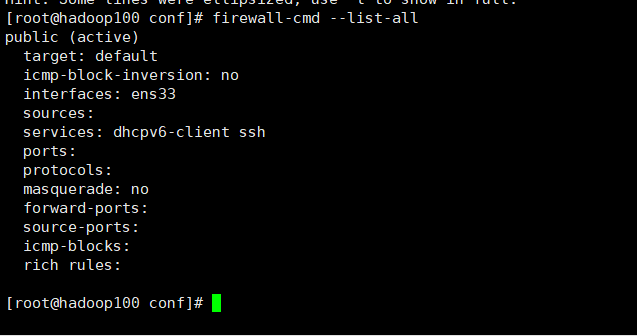
当前还没有任何开放,现在开放一个端口号
shell
sudo firewall-cmd --add-port=8001/tcp --permanent
开放完成后重启防火墙
shell
firewall-cmd --reload
重新查看一下防火墙开放的端口号
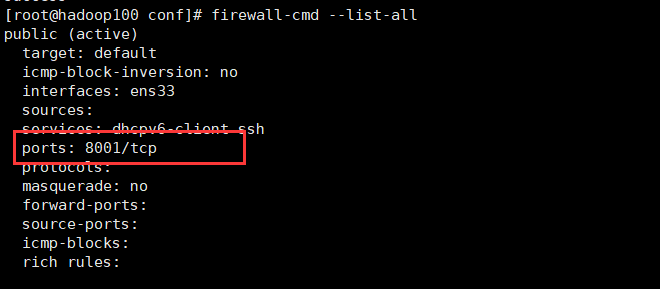
至此,开放防火墙端口号开放成功